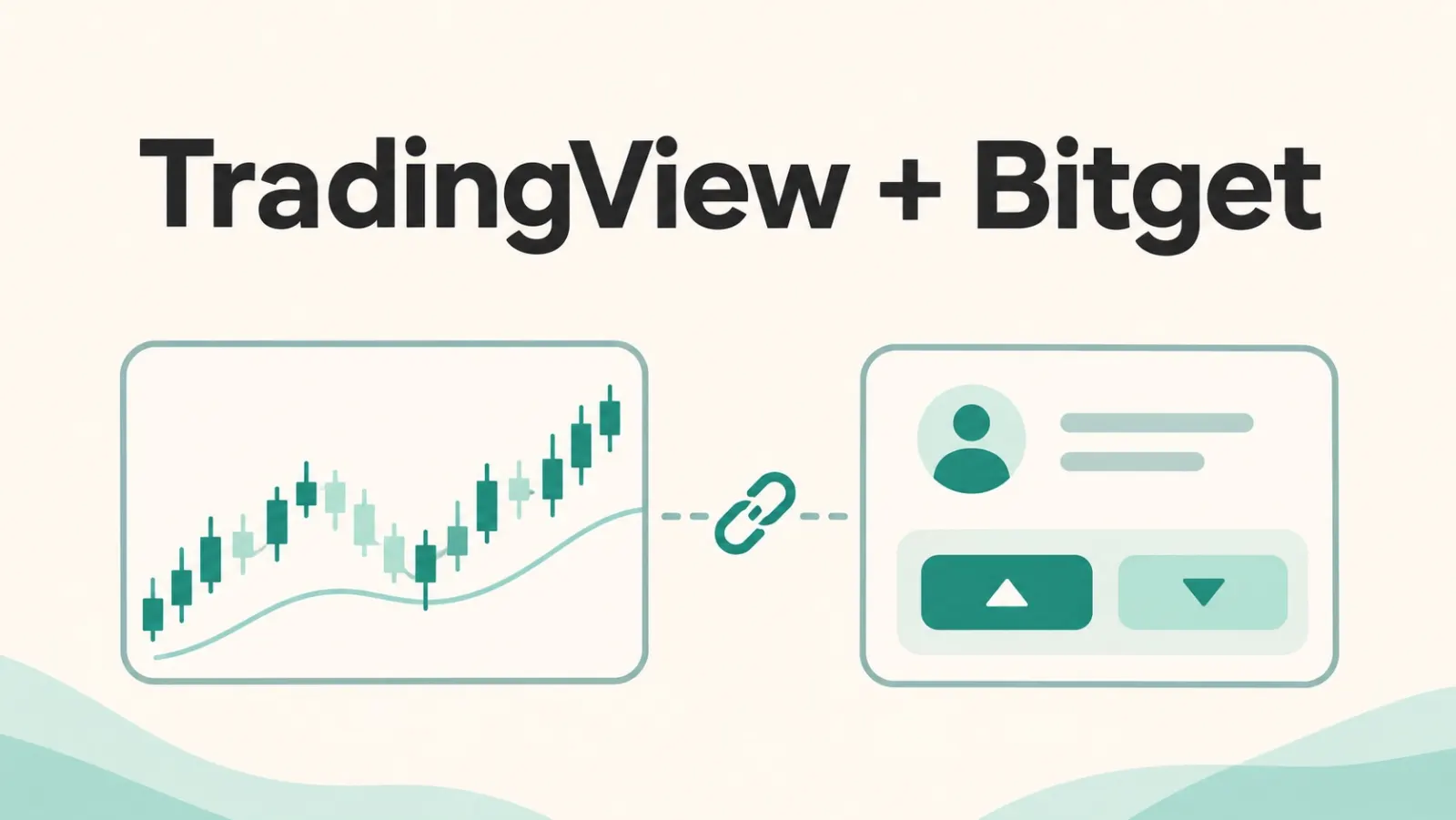
Why connect TradingView to Bitget?
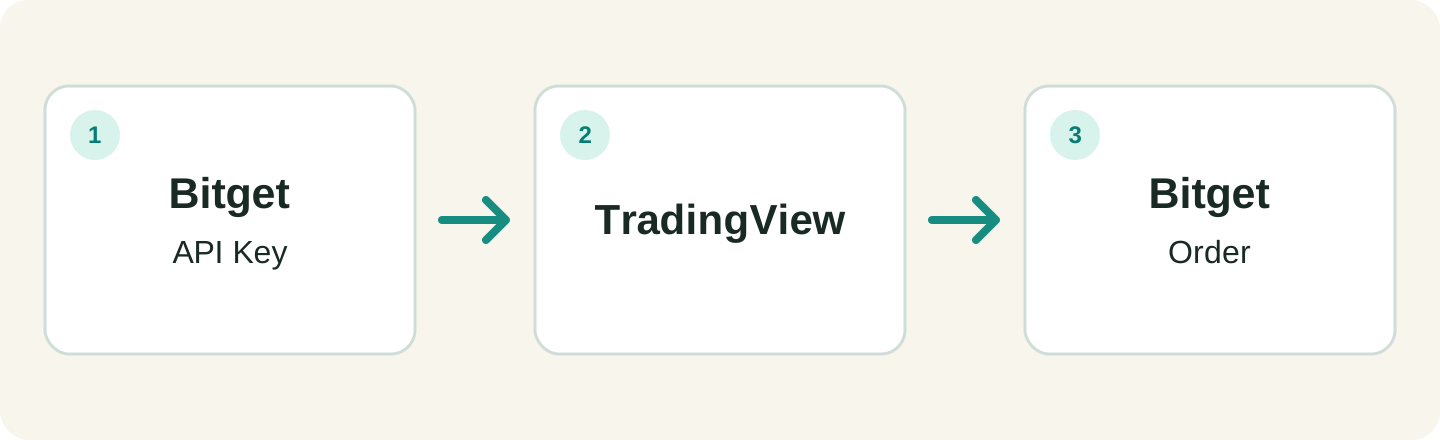
If you prefer TradingView’s charts to the Bitget trading screen, its broker integration lets eligible users analyze a Bitget market and submit orders from TradingView. Bitget remains the exchange and handles the account, funds and order execution; TradingView is the interface. Displaying a Bitget chart alone does not connect your account or place an order.
What you need before connecting
Have a TradingView account and a Bitget account that meets identity, regional and product requirements. Make sure the correct Bitget account has sufficient funds for the intended spot or futures trade. Bitget says the integration supports spot and futures, but available pairs, account types and features depend on your region and account.
Create a Bitget API key
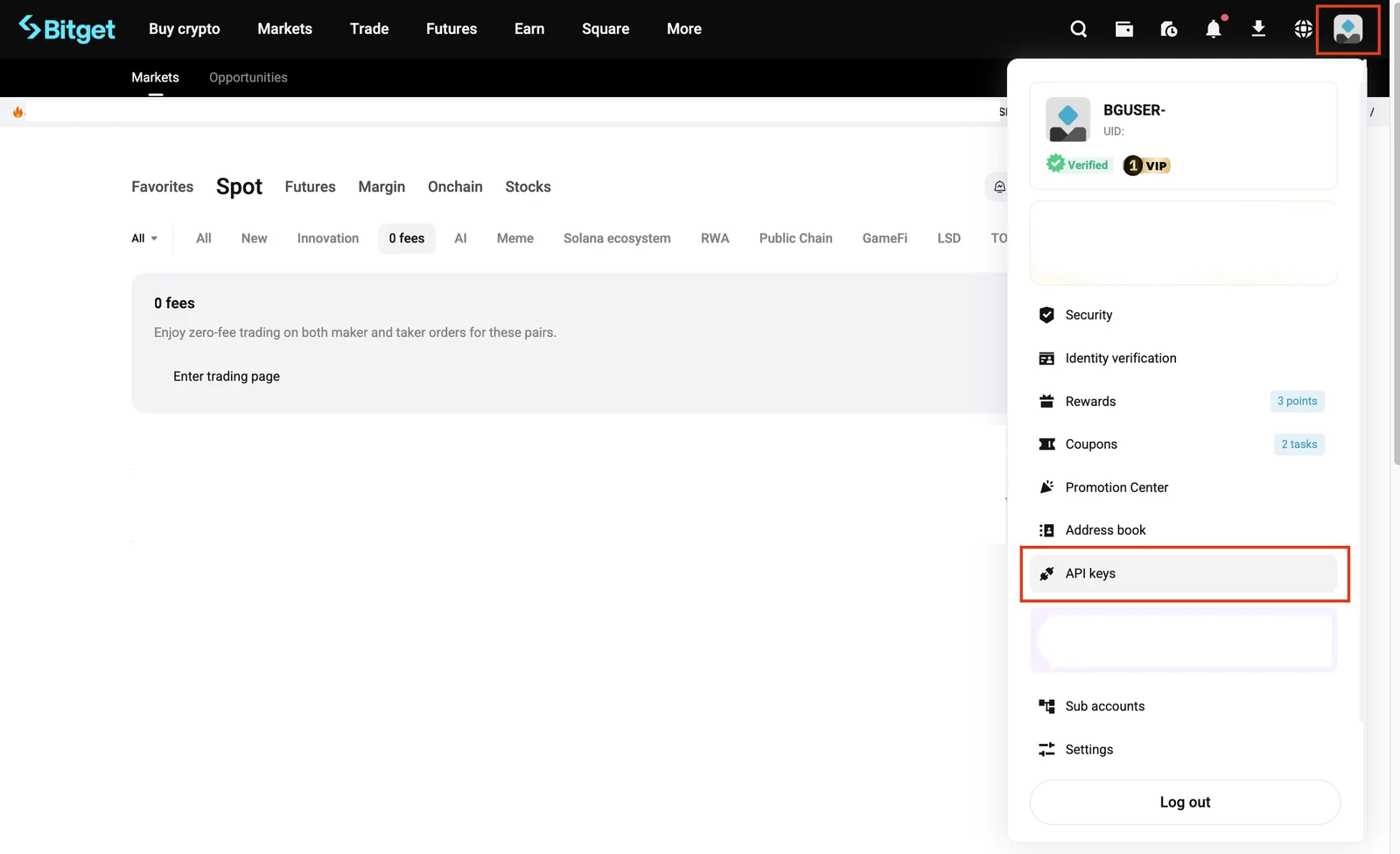
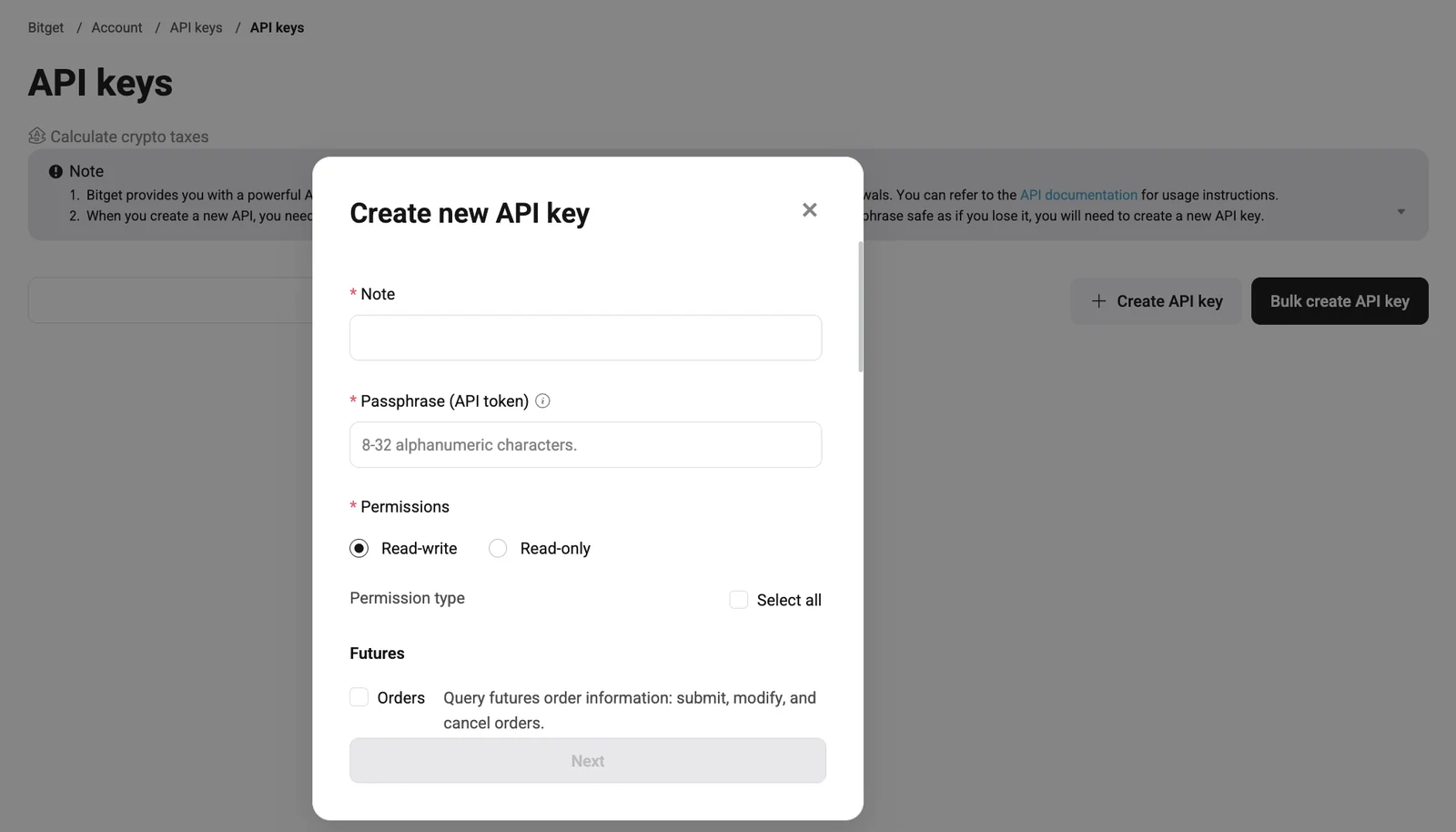
On the Bitget website, open your profile menu, choose API keys and create a key. Give it a recognizable name, set a passphrase and complete the requested verification. Bitget displays a secret key when the key is created; store it securely because it may not be shown again. The passphrase is separate from your account password.
Grant only the read and trading permissions needed for the markets you intend to use; leave withdrawal and other unnecessary permissions disabled. Never share your API key, secret or passphrase in messages or with anyone claiming to be support. Bitget says API keys connected to TradingView do not support single-IP binding; follow its current guidance on whitelists and other restrictions, and do not guess an IP address.
Connect the account in TradingView
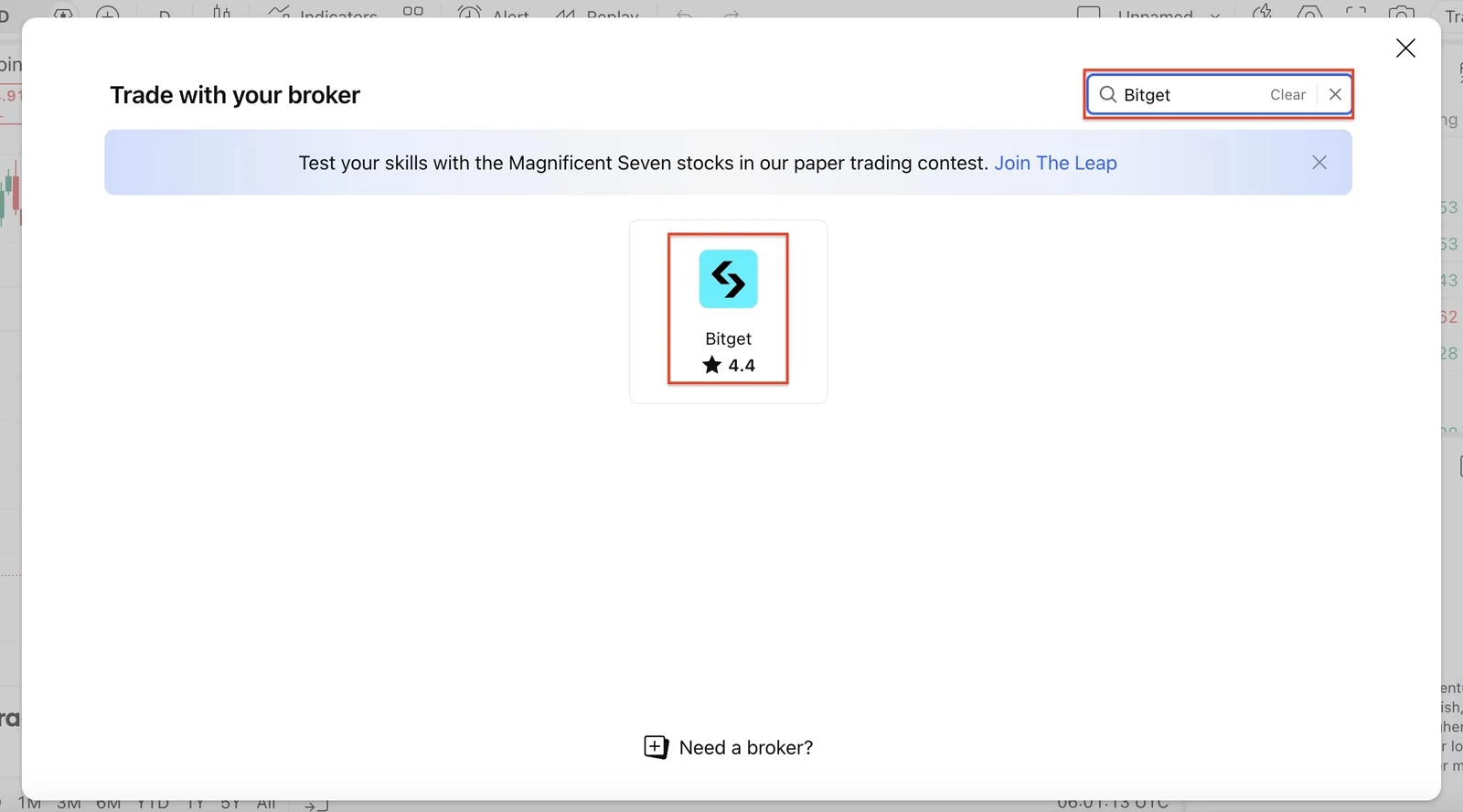
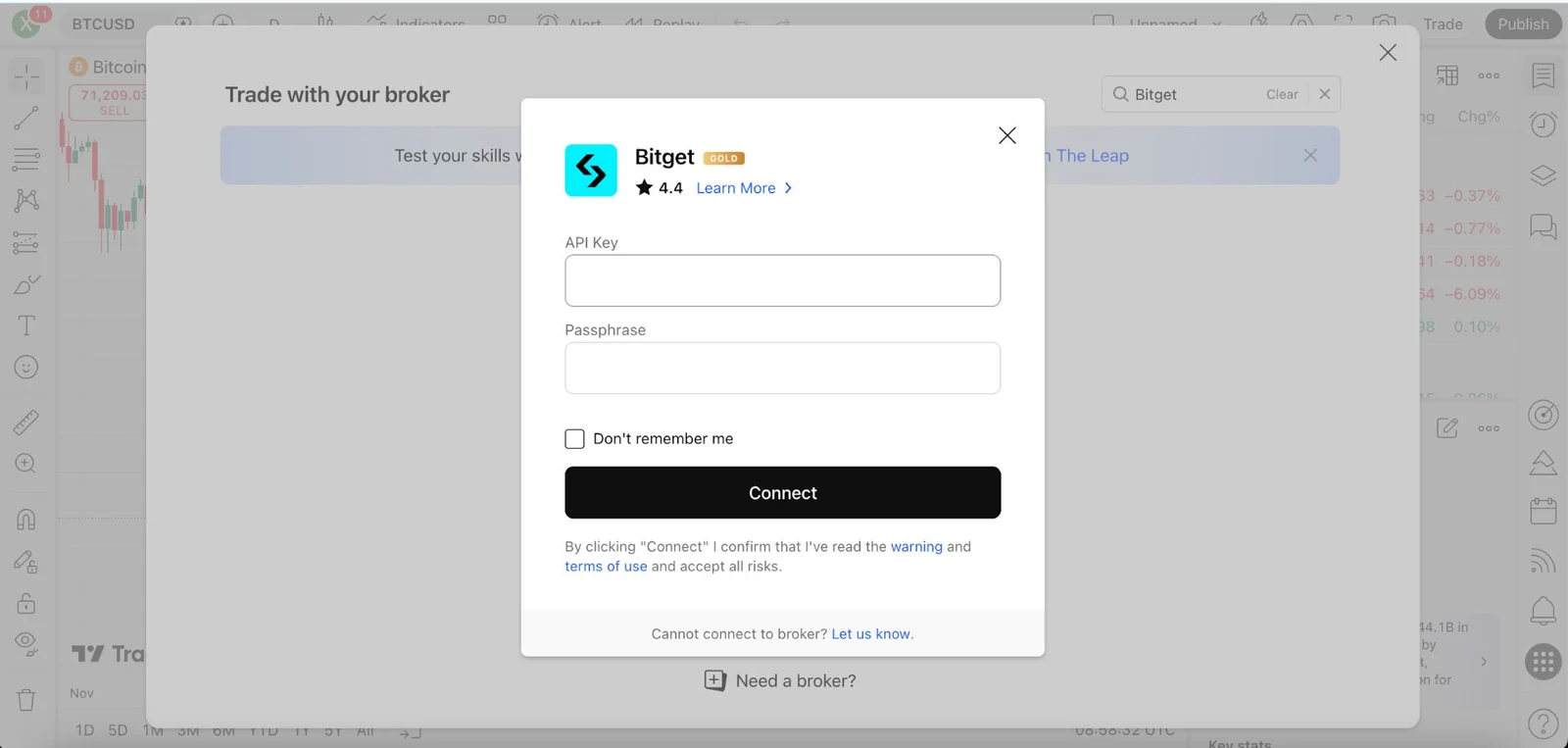
Sign in to TradingView and open Supercharts. Choose Trade or open the Trading Panel, search for Bitget and select Connect. Bitget’s guide says the connection window asks for the API key and passphrase, not the secret key; follow the current official prompts and complete any Bitget login or authorization requested. Enter credentials only on the official sites.
Once connected, check the Bitget account and available balance shown in the panel. Search for the correct Bitget symbol and confirm whether it is spot or futures; a similar ticker from another exchange is a different market. If Bitget is missing or authorization fails, check regional eligibility, API permissions and the current instructions from both services.
Place and manage an order
On the desired Bitget market, open the order ticket, select buy or sell and an available order type, then enter the quantity. Review the market, account, order type, estimated costs and any leverage or margin settings before submitting. A market order may execute at a different price; a limit order may not execute.
Check the order and position in TradingView’s Bitget panel and verify the status in Bitget if needed. TradingView says adding take-profit or stop-loss to an existing Bitget position is not supported there; use Bitget for that task and confirm the current rules. Availability of other order controls can change.
Fees, security and disconnection
Bitget says the connection itself is free, while applicable exchange trading fees still apply. TradingView plans and optional features may have separate charges; check current pricing and your Bitget fee tier. A chart, alert or backtest is not an instruction to trade: automated execution requires a separate supported setup.
To stop access, disconnect Bitget in the TradingView panel and revoke or delete the relevant API key in Bitget. Then check Bitget for any open orders or positions, which you may need to cancel or close there. If a credential may have leaked, revoke the key promptly and follow Bitget’s account-security guidance.
Practice and trade carefully
TradingView Paper Trading is a separate simulated account, useful for learning the interface without risking funds; it does not reproduce all live execution conditions. Live spot trades can lose value, and leveraged futures can be liquidated. Confirm product eligibility, order settings and risks before trading. This guide is informational, not investment advice.