How to Add Your Binance Card to Apple Pay
Add an eligible Binance Card to Apple Wallet on your iPhone or Apple Watch, check regional requirements, and troubleshoot card verification.
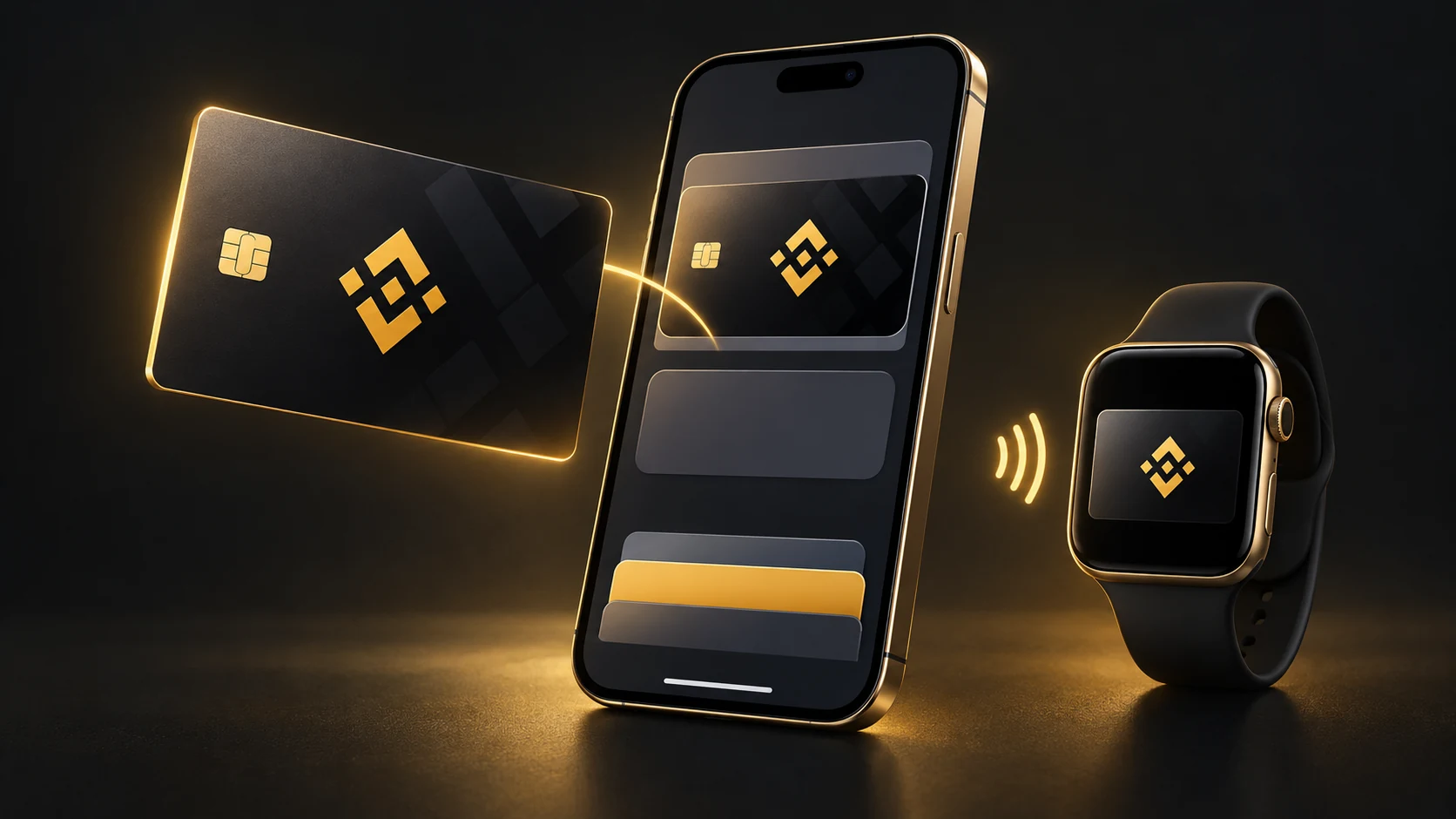
You can add a Binance Card to Apple Pay if your card program, country or region, and device support it. Binance’s Australia FAQ confirms support and describes both app and Wallet setup. Check the information for your own card before following these steps; a Binance account alone does not establish eligibility.
Before you start
Have an eligible Binance Card already issued to you. Update the Binance app and your device software. On a compatible iPhone, sign in to your Apple Account, enable two-factor authentication, and set up Face ID, Touch ID or a passcode. Apple Pay must be supported in your country or region.
Add the card through the Binance app
Open the Binance Card dashboard and select My Cards. Tap Add to Apple Wallet, then Next. Review the card details and terms, accept the terms if you agree, and complete the verification requested on screen. Wait for confirmation that the card has been added. Menu labels can differ by app language or version.
Add it directly in Apple Wallet
Where manual setup is supported, open Wallet on your iPhone, tap +, choose Debit or Credit Card, then Continue. Enter your Binance Card details and follow the terms and verification prompts. For a virtual card, retrieve its details from the Binance Card dashboard after security verification. Keep those details private.
Set up Apple Watch separately
On the paired iPhone, open the Watch app and go to My Watch, then Wallet & Apple Pay. Tap Add Card and follow the prompts to select or enter your Binance Card. Complete any issuer verification. Your watch needs a passcode; check that the card is ready on the watch before paying.
Make a payment
On iPhone, open Wallet, select your Binance Card and authenticate as prompted, then hold the top of the phone near a contactless reader. On Apple Watch, double-click the side button, select the card and hold the display near the reader. For online purchases, choose Apple Pay where the checkout offers it.
If the card will not add
If the add-to-Wallet button is missing, check support for your specific card with Binance. For an error saying the card cannot be added, is invalid or has reached a device limit, contact Binance Card support or the issuer. Check device compatibility, software updates, Apple Account two-factor authentication, your connection and service outages. Apple says the issuer decides whether a card is approved for Apple Pay.
Check the funding account before spending
Adding a card does not fund it. Binance’s Global Card guidance requires assets in the Funding Account, or the Spot Account when enabled as a funding source. Check your own card’s funding settings, fees and limits before spending. Buying cryptocurrency on Binance with Apple Pay is a separate process from adding a Binance Card to Wallet.
Sources
YOUR BINANCE REFERRAL CODE
- 20% Spot Trading Rebate
- 20% Futures Trading Rebate
- Up to $100 Sign Up Rewards
Available rewards are confirmed during registration.
We may earn a commission when you use this link, at no extra cost to you. Terms and regional restrictions apply.